
Properly Caching Images in Your MDX-Based Next.js Blog
- Published on
- Updated on
- (updated)
Warning
The steps here rely on webpack to bundle the images. This still works with Next.js 15 (as of 2025-04-17) but I am not sure if this will work on future versions/and the switch to turbo.
Note
For the examples in this post, I have intentionally set optimization: false in next.config.js > images to minimize
confusion with the generated paths when using the image optimization at vercel. The cache behaviour is still the same
whether optimization is on or off.
TL;DR
- Files in the
publicfolder don’t have a longcache-control: max-age. - Use webpack to bundle images into the Next.js build.
- Serve bundled images instead to have a properly configured
cache-control: max-age.
Intro/Problem
This blog uses Next.js and mdx-js1 to display content. The syntax for using an image in markdown is as follows:
For the /asset/path, the path to the image isn’t a path in the filesystem but a website path (usually a path to a static
asset in the public folder2). The issue with this, stated in their documentation:
Next.js cannot safely cache assets in the public folder because they may change. The default caching headers applied are:
Resulting in the served image to have this header: cache-control: public, max-age=0, must-revalidate. This can be reproduced by going to this page,
opening the browser console, and scrolling down enough to trigger the lazy fetch of the image.3
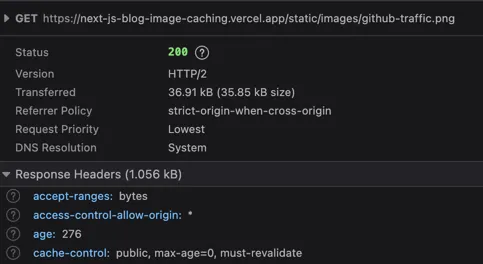
While intuitively, the website content can not change in the same deploy (assuming we’re not fetching dynamic data and all content is static), the urls to the assets will be the same across deploys.
For example:
- 2 deploys,
deployAanddeployB. - 2 versions of an image with the same name but have two different hashes,
hashAandhashB, both accessible at/images/image.png
Suppose we visit the site during deployA then update the image in deployB with a new version of the image with hashB.
If the image path did not change and still accessible at /images/image.png and had a big Cache-Control: max-age,
the browser will not know there is a new version of the image and would serve the stale image hashA instead.
Next.js can bundle the image instead by using import and passing it to the Image component.
import Image from 'next/image'

import imageContent from './image.png'

export default function About() {
  return (
    <Image
      src={imageContent}
      ...
    />
  )
}
Now when visiting a page with a statically imported
image, the cache header of the image is now cache-control public,max-age=31536000,immutable.4
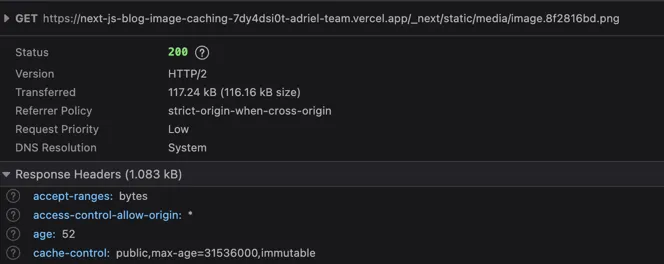
The image is now served from /_next/static/media/image.8f2816bd.png. Notice that the image path is not in the top level static folder
but now in a folder in _next (which means we’re serving a bundled image now). Also note that the file name is different
and will contain a hash to differentiate different versions of the image (resolving the same path concern when using the public folder).
Solution
The solution is to serve the bundled image instead of an image in the public folder. There are two problems to solve:
- How do we bundle the images since we’re not working with
jsxfiles but withmdxfiles? - What do we pass into our
Imagecomponent?
The PR to the solution can be found here.
Using Webpack to Bundle the Images
We’ll be using webpack to bundle our images located in the public/static/images folder (or wherever your images are in the public folder.
The images don’t have to be in the public folder in the end, but if you have an existing blog, you won’t need to update the existing posts.
import RequireContext = __WebpackModuleApi.RequireContext
const importFromFolder = (context: RequireContext) => {
  const images: Record<string, { default: { src: string } }> = {}

  for (const key of context.keys()) {
    if (!key.startsWith('public/static/images')) continue

    const newKey = key.replace('public/static/images', '/static/images')
    images[newKey] = context(key)
  }

  return images
}

const getImages = () => {
  const context = require.context('../public/static/images', true, /\.(png|jpe?g|svg|webp)$/)
  const keyToModule = importFromFolder(context)
  const keyToPath: Record<string, string> = {}

  for (const [key, value] of Object.entries(keyToModule)) {
    keyToPath[key] = value.default.src
  }

  return keyToPath
}

export default getImages()
Creating a Context
import RequireContext = __WebpackModuleApi.RequireContext
const importFromFolder = (context: RequireContext) => {
  const images: Record<string, { default: { src: string } }> = {}

  for (const key of context.keys()) {
    if (!key.startsWith('public/static/images')) continue

    const newKey = key.replace('public/static/images', '/static/images')
    images[newKey] = context(key)
  }

  return images
}

const getImages = () => {
  const context = require.context('../public/static/images', true, /\.(png|jpe?g|svg|webp)$/)
  const keyToModule = importFromFolder(context)
  const keyToPath: Record<string, string> = {}

  for (const [key, value] of Object.entries(keyToModule)) {
    keyToPath[key] = value.default.src
  }

  return keyToPath
}

export default getImages()
We need to call require.context()5 and this allows us to dynamically call require on multiple files in the target folder.
The first parameter is the folder to look into; our images are in ../public/static/images.
The second parameter is a flag on whether to recurse into the subdirectories. Lastly, the last parameter is a regex expression to filter for only
png, jpg, jpeg, svg, and webp.
Resolving Dependencies
import RequireContext = __WebpackModuleApi.RequireContext
const importFromFolder = (context: RequireContext) => {
  const images: Record<string, { default: { src: string } }> = {}

  for (const key of context.keys()) {
    if (!key.startsWith('public/static/images')) continue

    const newKey = key.replace('public/static/images', '/static/images')
    images[newKey] = context(key)
  }

  return images
}

const getImages = () => {
  const context = require.context('../public/static/images', true, /\.(png|jpe?g|svg|webp)$/)
  const keyToModule = importFromFolder(context)
  const keyToPath: Record<string, string> = {}

  for (const [key, value] of Object.entries(keyToModule)) {
    keyToPath[key] = value.default.src
  }

  return keyToPath
}

export default getImages()
Given our context, we would actually need to import our resource by calling context() on a key6.
This is a sample of the keys when calling context.keys():
[
  './2024-02-09-speeding-up-builds-for-berry-yarn-projects-on-vercel/override-install.png',
  './2025-04-17-properly-caching-images-in-your-mdx-based-nextjs-blog/static-import.png',
  './2025-04-17-properly-caching-images-in-your-mdx-based-nextjs-blog/uncached-image.png',
  'public/static/images/2024-02-09-speeding-up-builds-for-berry-yarn-projects-on-vercel/override-install.png',
  'public/static/images/2025-04-17-properly-caching-images-in-your-mdx-based-nextjs-blog/static-import.png',
  'public/static/images/2025-04-17-properly-caching-images-in-your-mdx-based-nextjs-blog/uncached-image.png'
]
Note, images appear twice, first time is a relative path to the folder passed into require.context and the second
is an absolute path from the project directory. We filter out duplicates by checking if the key is the absolute path.
Afterwards, we call context(key) to actually import the image and create a map from path to module. Note, we’re also
removing public from the path as we want image paths from the mdx file to match (which will be evident in the future section).
Creating a Map of Markdown Image Path to Bundle Path
import RequireContext = __WebpackModuleApi.RequireContext
const importFromFolder = (context: RequireContext) => {
  const images: Record<string, { default: { src: string } }> = {}

  for (const key of context.keys()) {
    if (!key.startsWith('public/static/images')) continue

    const newKey = key.replace('public/static/images', '/static/images')
    images[newKey] = context(key)
  }

  return images
}

const getImages = () => {
  const context = require.context('../public/static/images', true, /\.(png|jpe?g|svg|webp)$/)
  const keyToModule = importFromFolder(context)
  const keyToPath: Record<string, string> = {}

  for (const [key, value] of Object.entries(keyToModule)) {
    keyToPath[key] = value.default.src
  }

  return keyToPath
}

export default getImages()
Lastly, we need to get the bundled path and create another map of markdown image path to bundled path.
The bundled path can be found in the default.src of the module.
A sample map:
{
  '/public/static/images/2024-02-09-speeding-up-builds-for-berry-yarn-projects-on-vercel/override-install.png': '/_next/static/media/override-install.fdc421dc.png',
  '/public/static/images/2025-04-17-properly-caching-images-in-your-mdx-based-nextjs-blog/static-import.png': '/_next/static/media/static-import.0584634a.png',
  '/public/static/images/2025-04-17-properly-caching-images-in-your-mdx-based-nextjs-blog/uncached-image.png': '/_next/static/media/uncached-image.f71858f9.png'
}
Caveat
Since we are dynamically importing everything in our images folder, we might import an image that is not used in any post. Even though it’s not used, the image will still be part of the bundle and will not be tree shaked!
Rewriting the Path in the Image Component
Now we need to use the bundled path instead of the path to original path in our Image component.
import NextImage, { ImageProps } from 'next/image'

import images from '../lib/Images'

const Image = ({ src, ...rest }: ImageProps) => {
  if (typeof src === 'string' && src.startsWith('/static/images/')) {
    const imageSrc = images[src]
    // do a static import since we're not putting images in the public folder
    return <NextImage src={imageSrc} {...rest}  />
  }
  return <NextImage src={src} {...rest} />
}

export default Image
We create a wrapper around NextImage and check if the passed in src is of a path into /static/images. If it is,
we know it is bundled from the first step and pass in the resolved path instead.
Note
You would need to pass in this component instead of the NextImage component to the mdx-js compiler.
That step is not included in this blog post.
Results
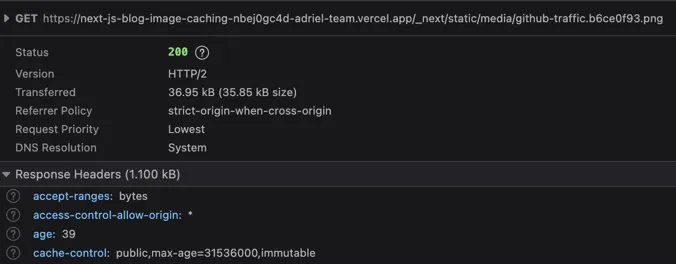
If you did everything right, the image being served is the bundled image and not the image in the public folder.
Now when visiting a page
that is serving a bundled image, the cache header is now cache-control: public,max-age=31536000,immutable.7
Conclusion
This wasn’t a straight forward process and I wish this was just a configuration for Next.js. I did try using a middleware
to add this cache-control header a year ago but that didn’t work. I also need to check if this solution works when
turbo is used 😅. Now to address the problem of bundling images that aren’t displayed anymore, I am thinking
of using remark-copy-linked-files.
Footnotes
-
A library that allows using JSX inside markdown files. For more info, check out their website. ↩
-
Static assets can be placed in the
publicfolder in the root of the project. To access the resource, for examplepublic/images/asset.png, you would visithttps://<domain>/images/asset.png. Note thatpublicisn’t part of the path. For more info, check out the next.js documentation. ↩ -
The source of this site can be found here in the
mainbranch. ↩ -
The source of this site can be found here which is in the
static-imported-imagebranch. This PR contains the relevant commits. ↩ -
The source of this site can be found here which is in the
webpack-bundlebranch. This PR contains the relevant commits. ↩